Fix OLM.dll Missing or Not Found Issue Easily (2026 Guide)
When the “OLM.dll missing or not found” error appears, it usually means that Outlook 2011 for Mac is unable to start properly. This issue often occurs when a required program file becomes damaged, deleted, or inaccessible. As a result, Outlook may fail to launch, and users may not be able to open their mailboxes or access stored email data.
Many users initially think that reinstalling Outlook is the easiest solution. Although reinstalling the application might remove the error in some cases, it can also create additional risks. If the mailbox data is not backed up properly before reinstalling the program, important emails, contacts, and other information could be lost. Because of this possibility, it is important to approach the problem carefully and consider safer alternatives.
Another challenge is related to the OLM file format itself. OLM files are designed specifically for Outlook for Mac and are not natively supported by most other email clients or operating systems. This limitation makes it difficult to open or access the data outside of the Outlook environment, especially when the application fails to start.
A more reliable approach is to repair or rebuild the Outlook database instead of immediately reinstalling the program. Rebuilding the database helps restore damaged application components and correct internal inconsistencies that may be causing the startup error. At the same time, this process allows users to retain their existing mailbox data and continue accessing their emails without interruption.
By taking this safer method, users can resolve the Outlook startup issue while protecting their valuable email information from accidental loss.
Common “OLM.dll Missing or Not Found” Error Messages and Symptoms in Outlook for Mac
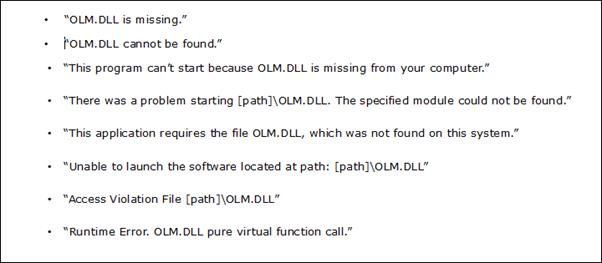
When the OLM.dll missing or not found, damaged, or corrupted, Outlook for Mac may begin to show different types of error messages. These messages can appear when launching the application, opening a mailbox, or performing other routine tasks. The exact wording of the error may vary depending on what caused the problem, such as incomplete installation, damaged program files, or issues within the Outlook database. Regardless of the message displayed, these errors generally indicate that Outlook is unable to access an essential file required for its normal operation.
Such error messages are often a warning sign of deeper technical problems that may affect the stability and performance of Outlook for Mac. Users may notice that the application fails to start, loads very slowly, or becomes unresponsive while accessing emails or folders. In some situations, Outlook may close unexpectedly or stop responding altogether.
The image below demonstrates how these types of errors may appear when the application encounters issues related to the missing or corrupted OLM.dll file. Recognizing these messages can help users better understand the problem and take the necessary steps to restore Outlook’s functionality.
Key Symptoms of Outlook 2011 for Mac Errors You Shouldn’t Ignore
When Outlook 2011 for Mac starts experiencing internal issues, users may notice several warning signs that indicate the application is not functioning properly. These symptoms can affect both the email client and the overall performance of the Mac system. Recognizing these signs early is important, as they may point to underlying problems with Outlook files, system resources, or application components.
Slow or Unresponsive System Performance: One of the first signs of a problem is a noticeable slowdown while using Outlook. The Mac system may become sluggish when launching the application, opening emails, or switching between folders. Tasks that normally complete quickly may take longer than usual.
Frequent Freezing or Application Crashes: Outlook may unexpectedly freeze during normal operations, such as reading emails or sending messages. In some cases, the application may close abruptly without warning. This behavior can interrupt work and may also affect other applications running on the system.
Access Denied Messages: Users might encounter errors that prevent them from opening certain emails, attachments, or mailbox folders. These access-related messages can occur when Outlook is unable to read or verify the required data files.
Missing or Unavailable Outlook Data Files: Another common symptom is the disappearance of important Outlook data. Emails, folders, or mailbox items may not show up in the interface, making it seem as though they have been deleted or lost.
Identifying these symptoms early can help users take the necessary steps to diagnose and resolve the issue before it leads to further complications or potential data loss.
Major Causes of Outlook 2011 for Mac Data Corruption Issues
Outlook 2011 for Mac stores mailbox information such as emails, contacts, calendars, and attachments within its database. When this data file becomes damaged or corrupted, users may start experiencing errors, performance issues, or difficulty accessing their mailboxes. Data corruption can occur for several reasons, and understanding these causes can help prevent similar problems in the future.
Below are some of the common factors that may lead to corruption in Outlook 2011 for Mac data files:
Network or Server Interruptions: If Outlook is connected to a mail server and the network connection suddenly drops, it can interrupt the synchronization process. Such interruptions may leave the data file in an incomplete or inconsistent state, which can eventually lead to corruption.
Malware or Security Threats: Although Mac systems are generally considered secure, they are not completely immune to malware or malicious software. If a virus or harmful program affects the system, it may interfere with Outlook’s data files and damage the stored mailbox information.
Exchange Server Problems: Users who access their emails through an Exchange server may experience data issues if the server crashes or encounters synchronization errors. Inconsistent communication between Outlook and the server can sometimes result in corrupted mailbox data.
Incomplete Installation or Failed Updates: Problems during Outlook installation or while applying updates can also affect the program’s stability. If the installation process is interrupted or an update does not complete properly, certain application components may become damaged.
Regardless of the reason behind the corruption, repairing the Outlook database is an important step in restoring normal functionality. Rebuilding the Outlook identity database can help repair internal issues and recover access to mailbox data. The following section explains the steps required to rebuild the Outlook Identity database in Outlook 2011 for Mac.
How to Rebuild the Outlook 2011 Identity Database on Mac (Step-by-Step Guide)
If Outlook 2011 for Mac is not starting correctly or showing errors related to missing or damaged files, rebuilding the Outlook Identity database can often resolve the issue. This process repairs the internal database where Outlook stores emails, contacts, calendars, and other mailbox information. Following the steps below carefully can help restore Outlook’s functionality without risking your data.
1. Close All Running Applications
Before beginning the rebuilding process, ensure that all applications on your Mac are completely closed. This prevents conflicts while the database is being repaired. If any application remains open or unresponsive, you can use Force Quit by pressing Command + Option + Esc and closing the active programs. Make sure no background applications related to Outlook are running.
2. Check Available Disk Space
Rebuilding the Outlook database requires additional storage space on your system. It is recommended to have at least three times the size of the Outlook database available on your Mac. For instance, if the Outlook database is around 1 GB, your system should ideally have 3 GB of free space to complete the rebuilding process smoothly. Insufficient storage may interrupt the repair operation.
3. Create a Backup of Your Outlook Identity
Before making any changes, it is highly recommended to create a backup of the existing Outlook identity. This backup acts as a safety copy in case anything unexpected happens during the rebuilding process.
To create the backup:
- Open Finder and select Go from the menu.
- Choose Home, then navigate to Documents.
- Open the Microsoft User Data folder.
- Locate the Office 2011 Identities folder.
- Create a duplicate copy of this folder and store it in a safe location.
Once the backup is complete, close all applications before proceeding to the next step.
4. Rebuild the Database Using Microsoft Database Utility
After preparing the system and creating a backup, you can start the rebuilding process using the built-in Microsoft Database Utility.
Follow these steps:
- Ensure that all applications are closed.
- Press and hold the Option key and then launch Outlook 2011.
- Alternatively, open Applications > Microsoft Office 2011 and access Microsoft Database Utility.
- In the utility window, select the Outlook identity that is experiencing issues.
- Click the Rebuild option to start repairing the database.
The rebuilding process may take some time, depending on the size of the Outlook data file.
5. Verify Outlook Performance
Once the rebuild process finishes, restart Outlook 2011 and check whether the application works normally. Try opening emails, folders, and other mailbox items to confirm that the problem has been resolved.
If Outlook starts without errors and functions properly, it indicates that the database repair was successful.
However, if the issue still continues, especially in systems that contain multiple Outlook identities, creating a new Outlook identity may help resolve persistent errors.
6. Create a New Outlook Identity (If Problems Continue)
When rebuilding the existing database does not solve the issue, creating a new identity can sometimes eliminate corruption associated with the previous one.
To create a new identity:
- Close all running applications.
- Press and hold the Option key while launching Outlook 2011 to open the Microsoft Database Utility.
- Click the “+” icon to create a new identity.
- Enter a name for the new identity and set it as the default option.
- Close Outlook and restart the application to apply the changes.
After restarting Outlook, check whether the error messages have disappeared and the program operates normally.
When Manual Methods Do Not Work
In some situations, the Outlook database may remain corrupted even after rebuilding or creating a new identity. Severe corruption can make manual repair methods ineffective. In such cases, using a specialized OLM file recovery or conversion tool can help recover mailbox data safely.
Professional tools such as MacArmy OLM Converter allow users to repair damaged OLM files and migrate Outlook for Mac data to different formats or email platforms. These tools typically support multiple output formats like PST, PDF, EML, MSG, MBOX, CSV, HTML, and others, and may also allow migration to services such as Office 365, IMAP, Gmail, Yahoo, Exchange Server, Thunderbird, and more.
By using a dedicated solution, users can recover their mailbox data and transfer it to a stable format or platform while preserving important items such as emails, attachments, contacts, and calendar entries.
Closing Words
Outlook 2011 for Mac has long been an important tool for managing emails, contacts, calendars, and other personal information. However, when issues such as database corruption occur, they can interrupt normal email operations and sometimes even affect the overall performance of the Mac system. Problems like application crashes, missing files, or startup errors may prevent users from accessing their mailbox data smoothly.
In many situations, rebuilding the Outlook database can help repair minor inconsistencies and restore normal functionality. This built-in method is often useful for resolving smaller issues within the Outlook identity. However, when the database corruption is severe or the errors continue even after rebuilding the identity, users may need a more reliable approach to recover their mailbox data.
In such cases, using a professional OLM conversion or migration tool can provide a safer and more efficient solution. A dedicated Mac Outlook for Mac Converter is designed to extract and convert Outlook for Mac mailbox data while preserving important elements such as emails, attachments, contacts, and other mailbox items. This software supports multiple output formats, including MSG, MBOX, PDF, EML, PST, and vCard, and can also help migrate data to popular email services like Gmail, Office 365, IMAP accounts, Yahoo, and other platforms.
