How to Export Your Entire Outlook Email Data on Mac? – (2026 Guide)
This article explains in detail how to export your entire Outlook email data on Mac with ease. It walks readers through a clear, step-by-step manual method to carry out the export process successfully. By following these instructions, users can securely preserve their emails for future reference or backup needs. In addition to the manual approach, the blog also introduces a dependable and safe automated solution that simplifies exporting all Outlook emails on macOS.
Apple Mail has long been the preferred email client for many Mac users. However, since the introduction of Outlook for Mac, it has quickly gained popularity, especially among professionals. Advanced features such as email recall, a customizable interface, powerful search capabilities, scheduled sending, and other productivity tools have made Outlook for Mac a strong competitor and a go-to choice in business environments.
Despite these advantages, organizations prioritize regular email backups to enhance data security and safeguard critical communication. Backups help protect against common risks such as accidental deletion, cyber threats, and unexpected data loss. That’s why this guide focuses on explaining how to export your entire Outlook email data on Mac effectively, ensuring long-term data protection.
Moreover, exporting Outlook emails offers several added benefits for organizations, including improved compliance, easier migration, and better data management. These advantages, along with the export methods, are discussed in detail in the following sections of the blog.
Why Is It Important to Export All Outlook Emails on Mac?
There are multiple situations where exporting the complete Outlook mailbox on macOS becomes necessary. Some of the most common reasons are outlined below:
Creating a copy of Outlook emails ensures critical messages remain protected from unexpected data loss caused by system failures, accidental deletion, or security incidents.
When users plan to switch to a new Mac or upgrade their existing system, transferring Outlook emails helps maintain continuity and prevents the loss of important communication.
Many organizations follow structured email archiving practices to comply with legal, regulatory, and internal policy requirements, making email export an essential task.
Saving mailbox data locally allows users to easily share email records with colleagues or team members whenever collaboration or documentation is required.
Exporting Outlook data can also help free up mailbox storage, improve performance, and make email management more efficient.
How to Export Your Entire Outlook Email on Mac
After understanding the reasons for exporting Outlook emails, let’s explore the methods available to complete this task on macOS. Below, you’ll find both a manual approach and a quicker, direct alternative to help you choose the option that best suits your needs.
Method 1: Export All Outlook Emails on Mac Using the Manual Method
Outlook for Mac provides a built-in option to save mailbox data locally. Follow the instructions below carefully to complete the process:
#1: Open the Outlook application on your Mac system.
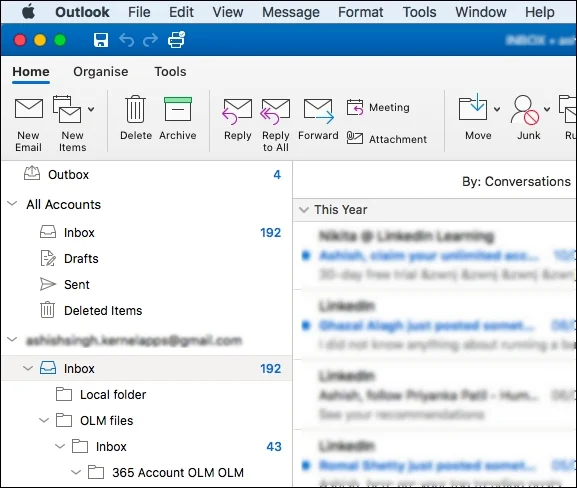
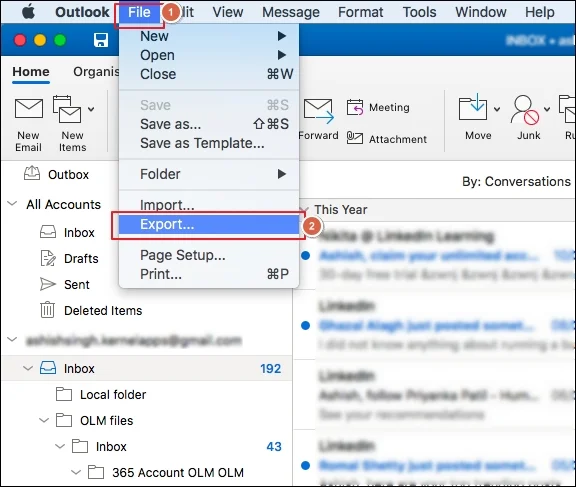
#2: From the top menu, click File, then select Export.
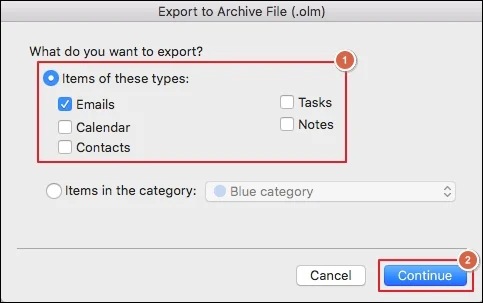
#3: When the Export to Archive File (.olm) window appears, select the Mail option and click Continue.
#4: Browse and choose a destination folder where you want the exported data to be stored, then press Save.
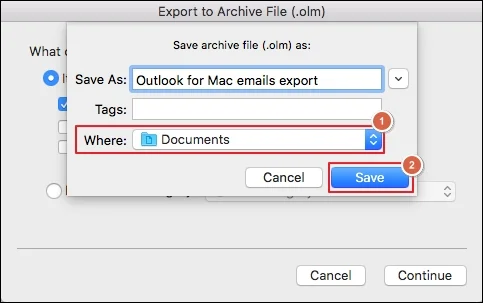
#5: Outlook will begin creating the OLM file containing your emails.
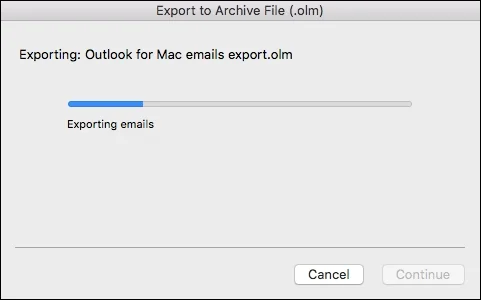
#6: Once the export is completed, click Finish to exit the window.
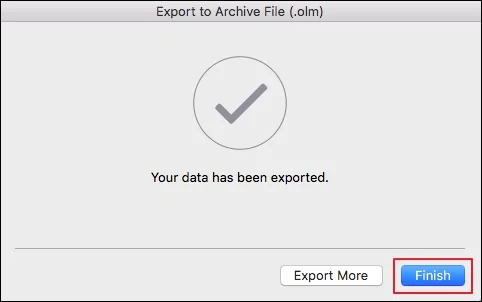
#7: Your emails will now be available at the selected location in OLM format.
This method is useful for basic backup needs but may be time-consuming when handling large mailboxes.
Method 2: Export Entire Outlook Email on Mac Using a Direct Solution
If you’re looking for a faster and more flexible option, a professional tool can simplify the export process. MacArmy OLM Converter for Mac & Windows allows users to export Outlook emails in bulk, along with additional data such as contacts, calendars, and other mailbox items.
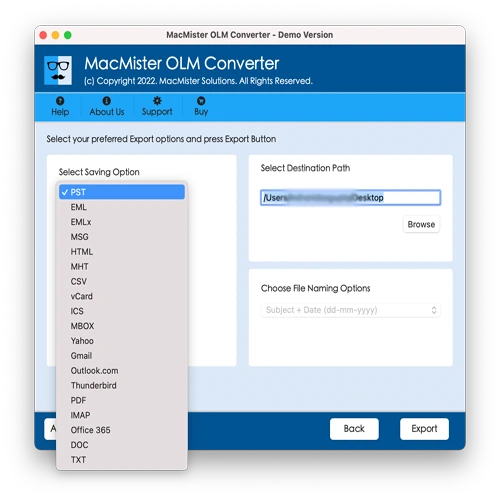
The software is designed with ease of use in mind, making it suitable for both technical experts and beginners. It supports exporting Outlook data into more than 15 file formats and email platforms, including PST, MBOX, PDF, CSV, EML, TXT, Office 365, IMAP, Yahoo Mail, and many others.
In addition, the tool offers advanced features that ensure accurate results without compromising data security. Users can also take advantage of the free trial version to explore the software’s functionality and evaluate its performance before making a decision.
Step-by-Step Software Guide to Export Entire Outlook Email on Mac
Follow the instructions below to export all Outlook emails on macOS using a professional tool efficiently:
#1: Download the application, install it, and launch the program on your Mac system.
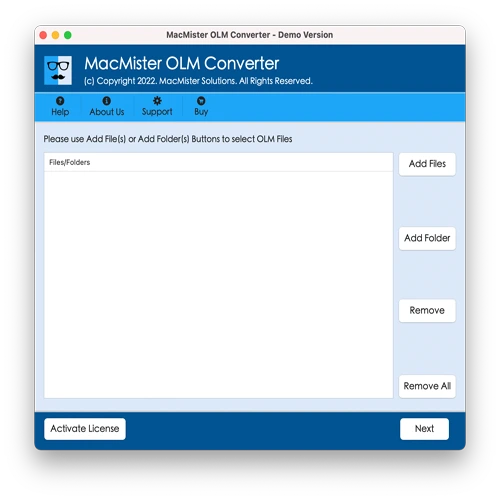
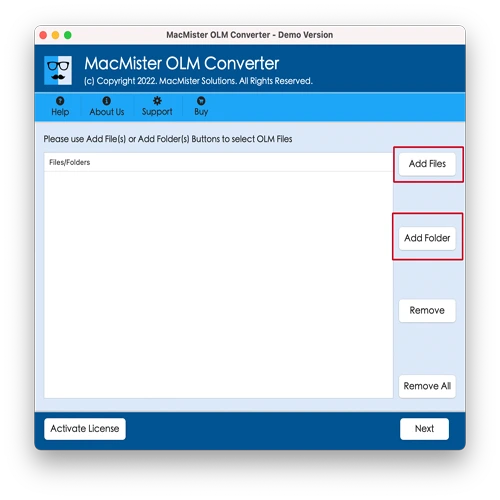
#2: Use the Add File(s) or Add Folder options to import individual OLM files or an entire folder containing multiple OLM files into the software. Once loaded, click Next to proceed.
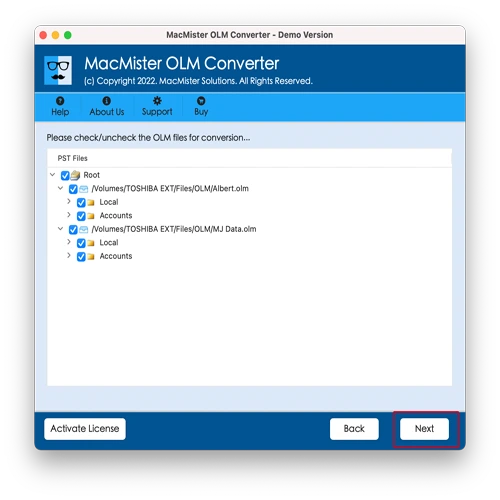
#3: The imported OLM files will appear in a list with selection boxes. All items are selected by default, but users can modify the selection if they only want to export specific files. Click Next after confirming your choice.
#4: Click on Select Saving Option and choose the desired output format from the available list.
#5: Configure additional settings related to the selected format as needed, then click Export to begin the process.
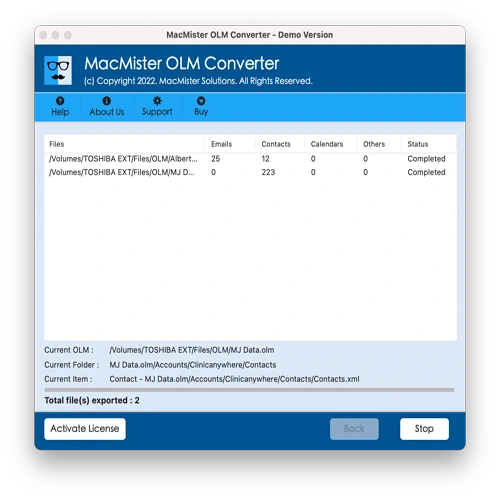
#6: A real-time progress window will appear, displaying the current status of the email export operation.
Once the task is completed, a confirmation message will appear on the screen. Click OK, then navigate to the chosen destination folder to access the exported files. You’ll find that all email messages are preserved accurately, including their original formatting, attachments, and metadata details such as sender, recipient, date, and subject.
Why Should You Opt for a Direct Solution?
A direct approach offers a wide range of advanced capabilities that make the export process faster and more efficient. Some of the key advantages are listed below:
- Enables bulk transfer of all Outlook emails on Mac in a single operation.
- Supports exporting mailbox content along with additional items such as contacts, calendars, tasks, journals, and more.
- Provides more than 15 output formats and destinations, including PST, PDF, MSG, EML, HTML, TXT, DOC, Office 365, Yahoo Mail, and others.
- Maintains the original structure, formatting, and metadata details of emails throughout the conversion process.
- Handles large OLM files smoothly without performance issues.
- Comes with Add File(s) and Add Folder options for easy loading of Outlook data into the software.
- Displays a real-time conversion status through a live progress report.
- Fully compatible with both macOS and Windows systems across all versions.
Epilogue
In this article, we explored multiple ways to export entire Outlook mailbox on Mac. The manual method is free and accessible but involves multiple technical steps, which may be challenging for users without prior experience. Additionally, it can be time-consuming when dealing with large volumes of data.
On the other hand, the direct method offers a faster, safer, and more user-friendly experience. It allows bulk export of Outlook emails with minimal effort and operates within a secure environment. Both technical professionals and everyday users can use the tool comfortably without facing complications.
Moreover, the software includes powerful features that ensure precise results and complete data integrity. A free trial version is also available, enabling users to export up to 25 OLM files at no cost, making it easy to evaluate the tool before opting for the full version.
