How to Fix Outlook When PST File Is Not Recognized?
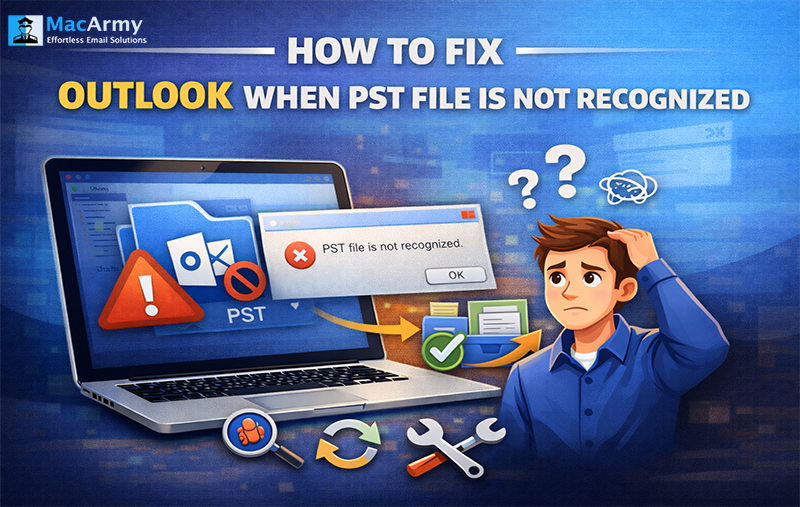
Are you planning to move your Microsoft Outlook account to a new computer or switch to a different operating system? If so, proceed carefully. During the process of importing a PST file into Outlook, you may encounter an error where Outlook when PST file not recognized. In many cases, Outlook displays a message indicating that the file is corrupted, preventing it from being uploaded successfully.
This issue is quite common when transferring Outlook data between systems. However, there’s no need to worry. In this guide, we will walk you through several straightforward and effective troubleshooting methods that can help Outlook detect and open the PST file without errors.
A PST (Personal Storage Table) file is an Outlook data file used to store emails, contacts, calendar entries, tasks, and other mailbox items. It allows users to create local backups or archives of their Outlook data, making it easier to access emails offline or transfer data between devices. PST files are widely used in Microsoft Outlook, Exchange Client, and Windows Messaging to manage and preserve mailbox information securely.
By understanding the role of PST files and applying the right solutions, you can quickly resolve the issue and restore access to your Outlook data.
Common Causes of the “Outlook Not Recognizing PST File” Error
When the error occurs, standard options such as opening the PST file directly, running the Inbox Repair Tool (ScanPST.exe), or importing the file through Outlook may not work at all. This can be frustrating, especially when important emails and data are involved.
However, there is no need to panic. Several practical solutions can help resolve this issue. Before moving on to the fixes, it is important to understand the common reasons that trigger the “Fix Outlook when PST file not recognized” error. Identifying the root cause will make it easier to apply the correct solution and restore access to your Outlook data efficiently.
Methods to Resolve the “Outlook Does Not Recognize PST File” Issue
Upgrade Microsoft Outlook: Using an outdated version of Microsoft Outlook can sometimes lead to PST file issues, especially after upgrading the application. During the upgrade process, certain components may not update correctly, which can result in file corruption or compatibility problems. Older PST files, particularly ANSI-format PST files, are more prone to such issues. To avoid this, ensure that both Outlook and the PST file format are updated to the latest version. Once upgraded, Outlook should be able to recognize and load the PST file properly.
Reduce the Size of Large PST Files: Oversized PST files are a common cause of corruption in Microsoft Outlook. As the file size grows beyond recommended limits, Outlook may struggle to process the data efficiently, leading to errors or inaccessibility. Splitting a large PST file into smaller parts can help prevent further damage and improve Outlook’s performance. If the file is already corrupted, using a reliable repair solution may be necessary to restore access.
Avoid File Sharing Over Unsecured Networks: Transferring PST files over an unsecured or unstable network can easily damage them. Network interruptions, incomplete transfers, or data packet loss can corrupt the file structure. To minimize risk, always use a secure and stable network when sharing or moving PST files. In cases where corruption is severe, affected files may become completely inaccessible.
Check for Hard Drive Issues: A failing or damaged hard drive can also prevent Outlook from recognizing PST files. Bad sectors or disk errors may corrupt the file or block access to it. In such situations, even Microsoft’s Inbox Repair Tool (ScanPST) may fail to resolve the issue. Running disk diagnostics and addressing hardware problems is essential before attempting further PST file recovery.
What to Do If ScanPST Is Unable to Recognize the PST File?
When the Inbox Repair Tool (ScanPST) fails to detect or repair a PST file, the options for manual recovery become very limited. Unfortunately, Microsoft does not provide a reliable built-in solution to fix severely damaged or unrecognized PST files. In such cases, repairing the file manually is often not possible.
When this happens, using an automated solution becomes the most practical approach. A reliable solution for resolving PST file issues is the MacArmy PST Converter, available for both Mac and Windows. While the tool does not directly repair corrupted PST files, it helps prevent further data loss by allowing users to safely extract and back up mailbox data from the affected PST file.
With this utility, users can export PST data into more than 15 different formats and platforms, including PDF, EML, HTML, OLM, IMAP, Gmail, Yahoo Mail, Office 365, and more. The application features a clean and user-friendly interface, making it suitable for both technical professionals and first-time users.
In addition, the software offers advanced options that allow users to customize the conversion process based on their specific needs. To better understand how the tool works, users can download the free demo version, which allows exporting up to 25 items from a PST file at no cost.
How the Application Works
#1: Download and install the application, then add PST files using the Add File(s) or Add Folder option.
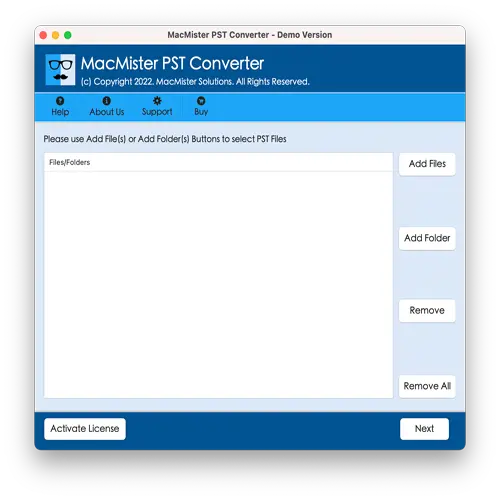
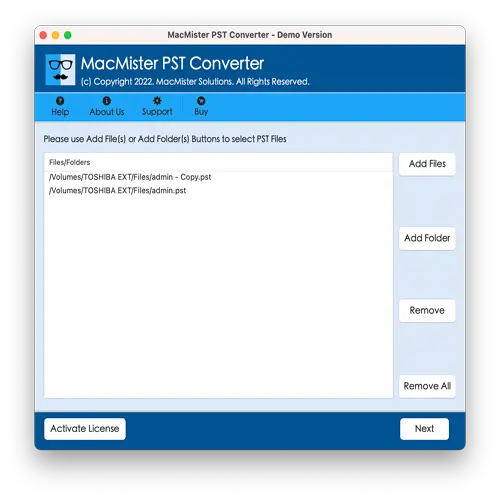
#2: Once the files are loaded, the tool displays all added PST files. Check the list carefully, then click Next to proceed.
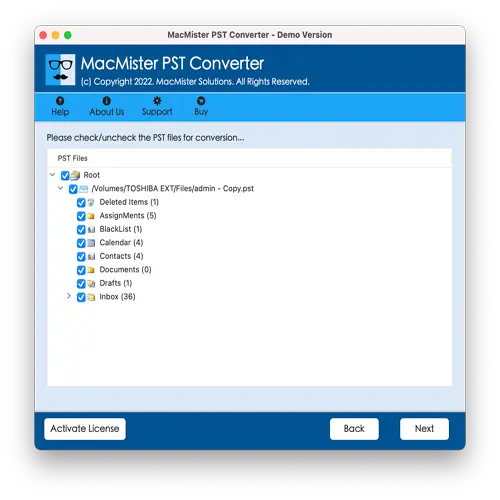
#3: Select the desired export or backup format from the available saving options.
#4: Apply any additional filters or preferences as needed, then click Export to start the process.
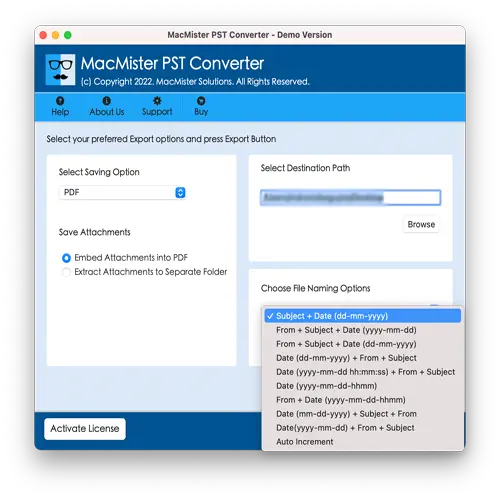
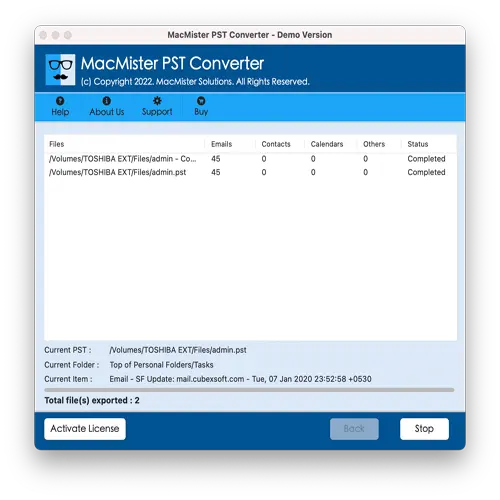
#5: Monitor the progress through the on-screen Live Conversion Report, which shows the real-time backup status.
Why Choose an Automated Solution?
Using an automated tool offers several advantages, especially when manual methods fail. Some key benefits include:
- Allows bulk backup of multiple PST files at once
- Compatible with both Windows and macOS platforms
- Offers simply Add File(s) and Add Folder options for easy PST upload
- Supports over 15 export formats and email services, including PST, EML, HTML, DOC, Yahoo Mail, Office 365, and more
- Ensures complete data safety by preserving the original PST file
- Maintains email properties and metadata throughout the conversion
- Handles large-sized PST files efficiently without performance issues
Conclusion
This guide has outlined effective approaches to address the “Fix Outlook when PST file not recognized” error. By identifying the root cause and applying the appropriate solution, users can successfully restore access to their Outlook data. While manual methods may work in some cases, automated solutions provide a more reliable and efficient way to manage unrecognized or inaccessible PST files. We hope this article helps you resolve PST-related issues and ensures a smooth Outlook experience.
