How to Fix Outlook Error 0x8000FFFF Without Losing Data?
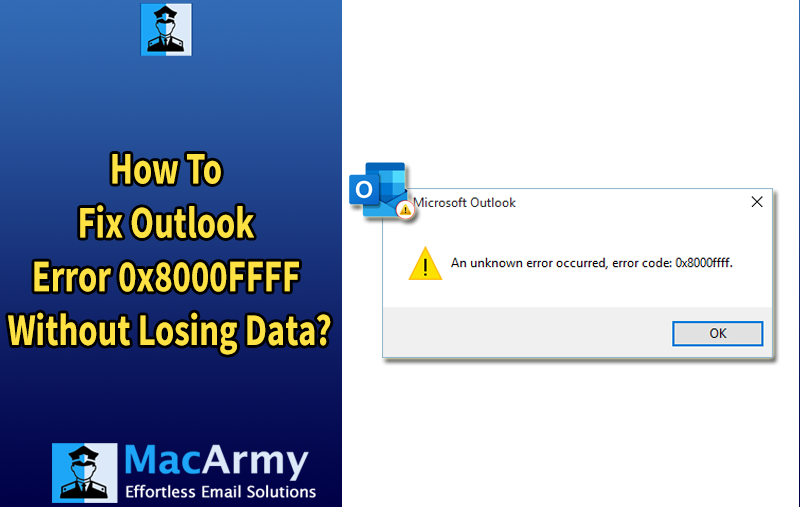
Among the many email clients available today, Microsoft Outlook stands out as one of the most widely used tools for managing both professional and personal emails. However, like any software, Outlook is not immune to technical issues, and some users experience more frequent problems than others. One of the common and frustrating issues faced by users is Outlook error 0x8000FFFF. This error can disrupt normal email operations, preventing users from sending or receiving messages, and in some cases, even from opening Outlook data files, causing significant inconvenience.
This blog will cover everything you need to know about Outlook error 0x8000FFFF, including its definition, common causes, symptoms, and effective solutions. The guide is designed to help both regular users and administrators troubleshoot the error efficiently while ensuring that Outlook data remains safe and intact.
What Is Outlook Error Code 0x8000FFFF?
Outlook error 0x8000FFFF is commonly referred to as an “unexpected failure” error. It typically occurs when Outlook is unable to complete a specific task due to internal corruption, system-related issues, or conflicts in configuration settings. Users may encounter this error in various situations, including:
- When starting or launching Outlook.
- While sending or receiving emails.
- During the import or export of mailbox data.
- When accessing OST or PST files.
The exact error message may vary, but it usually includes the code 0x8000FFFF, signaling a serious malfunction within Outlook that prevents it from functioning correctly.
How to Identify Outlook Error 0x8000FFFF
When Outlook encounters the 0x8000FFFF error, users often notice specific warning signs. These include:
- Frequent crashes or freezing of the Outlook application.
- Emails are failing to send or receive properly.
- Inability to access PST or OST files.
- Synchronization problems with Exchange or IMAP accounts.
- Unexpected shutdowns or termination of Outlook processes.
Being able to recognize these symptoms early can help users address the issue promptly and minimize potential data loss or further complications.
Causes of Outlook Error 0x8000FFFF
Understanding the root causes of Outlook error 0x8000FFFF is crucial for applying the right solution. Some common factors that can trigger this error include:
- Corrupted Outlook Files: PST or OST files can become damaged due to large file sizes, sudden system shutdowns, malware attacks, or other internal issues, leading to Outlook failures.
- Problematic Outlook Add-ins: Third-party add-ins can sometimes conflict with Outlook’s functionality, causing errors like 0x8000FFFF. Launching Outlook in safe mode can help identify if add-ins are the culprit.
- Incomplete or Faulty Installation: If Microsoft Office or Outlook was not installed correctly, or essential files are missing, users may encounter errors during normal operations.
- Antivirus or Firewall Interference: Overly strict antivirus or firewall settings can block Outlook processes, resulting in operational errors.
- Corrupted Windows System Files: Damaged or missing Windows system files can disrupt Outlook’s functioning and trigger the 0x8000FFFF error.
- Email Account or Profile Issues: Misconfigured email accounts or corrupt Outlook profiles may prevent Outlook from working correctly, leading to this error.
Identifying the underlying cause helps ensure that the chosen solution effectively resolves the problem without causing further issues.
How to Fix Outlook Error 0x8000FFFF
Here are some effective methods to resolve Outlook error 0x8000FFFF. You can try them in order to determine which works best for your situation.
#1: Restart Outlook and Your Computer
Sometimes, the error occurs due to temporary glitches or conflicts running in the background. Restarting both Outlook and your system can often resolve the issue by refreshing system resources and closing any conflicting processes.
#2: Open Outlook in Safe Mode
Running Outlook in Safe Mode disables all add-ins, which helps identify if third-party extensions are causing the error. Follow these steps:
- Press Windows + R to open the Run dialog box.
- Type outlook.exe /safe and press Enter.
- If Outlook opens without error in Safe Mode, the problem is likely caused by one or more add-ins. Disable add-ins one at a time to pinpoint the culprit.
This approach helps isolate and fix errors related to incompatible or faulty add-ins without affecting your Outlook data.
#3: Repair Outlook Files (PST/OST) to Resolve Outlook Error 0x8000FFFF
Microsoft provides a built-in utility called ScanPST.exe to help repair corrupted PST files. This tool can fix minor issues in Outlook data files and restore functionality.
Steps to Repair Outlook Files:
- Close Outlook completely.
- Locate the Office installation folder on your system.
- Find and open SCANPST.EXE.
- Select the Outlook data file (PST or OST) you want to repair and click Start.
- If the tool detects errors, click Repair to fix the file.
Limitations of Using ScanPST:
- It cannot fix severely corrupted PST or OST files.
- There is a risk of partial data loss during repair.
- The tool may fail to repair very large PST files.
While ScanPST can resolve minor corruption issues, more serious errors often require a professional Outlook repair tool for safe and complete recovery.
#4: Create a New Outlook Profile to Fix Error 0x8000FFFF
A corrupted Outlook profile can cause multiple issues, including the 0x8000FFFF error. Creating a new Outlook profile often resolves these problems.
Steps to Set Up a New Outlook Profile:
- Open the Control Panel on your computer.
- Go to Mail and click Show Profiles.
- Click Add to create a new profile and give it a unique name.
- Set the new profile as the default profile.
- Close Outlook and reopen it using the new profile to check if the error has been resolved.
Creating a fresh profile helps eliminate issues caused by corrupted settings or configuration conflicts in the previous Outlook profile.
#5: Temporarily Disable Antivirus or Firewall
Sometimes, antivirus programs or firewall settings can interfere with Outlook and cause the 0x8000FFFF error. To check if this is the cause:
- Temporarily disable your antivirus or firewall software.
- Open Outlook and see if the error persists.
- If the error disappears, consider adding Outlook to the antivirus or firewall’s whitelist/exclusion list.
- Remember to re-enable your antivirus protection after testing to keep your system secure.
#6: Repair Microsoft Office Installation
A corrupted or incomplete Microsoft Office installation can also trigger Outlook error 0x8000FFFF. You can repair Office using the following steps:
- Open the Control Panel on your computer.
- Navigate to Programs and Features.
- Locate Microsoft Office in the list of installed programs.
- Click Change and select either Quick Repair or Online Repair for Outlook.
- Follow the on-screen instructions to complete the repair process.
Repairing Office can fix corrupted program files and restore Outlook to proper working condition.
Use a Professional Tool to Avoid Errors like Outlook Error 0x8000FFFF
If the manual solutions fail or your PST/OST files are severely corrupted, using a professional tool such as a PST Converter is the most reliable option. This type of software is specifically designed to handle complex Outlook data files safely and efficiently.
The tool allows users to export Outlook data to multiple formats, including PDF, MBOX, EML, OLM, CSV, VCF, and more, while ensuring that all data remains intact. Additionally, it can repair damaged PST or OST files, recovering emails, contacts, calendars, tasks, and other Outlook items without any loss of data.
Using a professional solution not only saves time but also minimizes the risk of further corruption or errors like 0x8000FFFF, making it ideal for both individual users and organizations managing critical email data.
Conclusion
Outlook error 0x8000FFFF is a frequent issue that can disrupt your daily email activities and workflow. This error can be caused by corrupted PST or OST files, faulty add-ins, incomplete Office installations, or interference from antivirus software. By understanding the common symptoms and underlying causes, users can choose the appropriate troubleshooting steps to resolve the problem effectively.
If manual solutions do not work or there is concern about data safety, using a professional tool is the most reliable approach. Such tools not only repair corrupted files but also ensure the integrity and security of your mailbox data. By following the methods outlined in this guide and taking preventive measures, you can successfully fix Outlook error 0x8000FFFF and maintain smooth email operations.
