Why Outlook Folders Disappear and How to Restore Them?
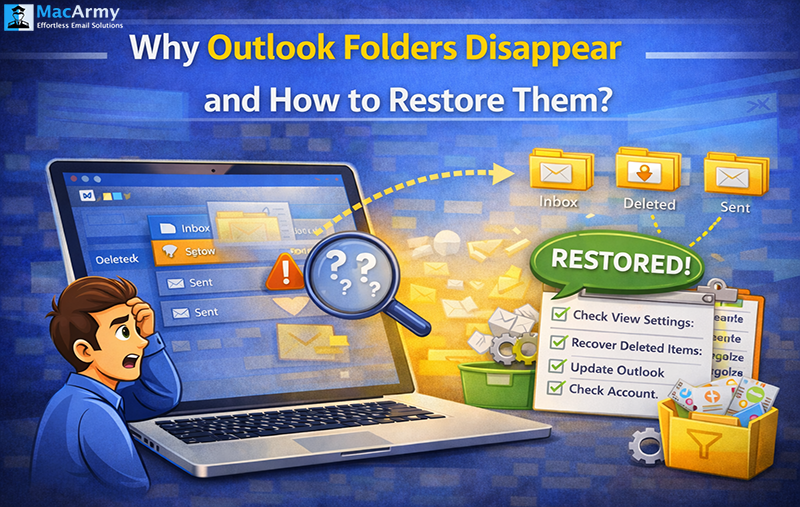
Introduction: Have you ever accidentally deleted an important folder in Microsoft Outlook and wondered how to get it back? Losing folders can be stressful, especially when they contain important emails or files. The good news is that there are several ways to recover them. In this guide, we will explain how to restore folders in Outlook, whether you are using the desktop application or the Outlook Web App.
Restore Folders in Microsoft Outlook – Different Techniques
When a folder is deleted in Microsoft Outlook, it is not permanently removed right away. Instead, Outlook usually moves the folder to the Deleted Items or Trash folder, which works as a temporary storage location. This allows users to easily restore the folder if it was deleted by mistake.
Even if the Deleted Items folder has already been emptied, there may still be a chance to recover the folder. Outlook stores removed emails and items in a hidden location known as Recoverable Items for a limited period of time. From there, users may still be able to retrieve their deleted data.
Below, we will go through several methods that can help you restore deleted folders in Outlook step by step.
Method 1: Restore Deleted Folders in Microsoft Outlook from Deleted Items
One of the easiest ways to recover a deleted folder in Microsoft Outlook is by checking the Deleted Items folder. When a folder is removed, Outlook usually moves it to this location instead of deleting it permanently. In some versions of Outlook, this folder may also be labeled as Trash. If the folder is still there, you can restore it quickly by following these steps:
#1: Launch the Microsoft Outlook email application on your computer.
#2: In the folder pane, locate and open the Deleted Items or Trash folder.
#3: Browse through the list to find the folder that was accidentally deleted.
#4: Once you locate it, right-click on the folder you want to recover.
#5: From the context menu, select the Move option and then choose Other Folder.
#6: Select the location where you want the folder to be restored.
#7: Click the OK button to move the folder back to the selected location.
By following these steps, you can quickly restore a deleted folder and regain access to the emails stored inside it.
Method 2: Restore Deleted Folder in Outlook 365 or Exchange Server
If you are using Microsoft Outlook with services like Microsoft 365 or Microsoft Exchange Server, there is an additional recovery option available. In these environments, even if a folder is not visible in the Deleted Items or Trash folder, it may still exist in the Recoverable Items section. This feature temporarily stores deleted data, allowing users to retrieve it within a certain time period.
You can attempt to restore the erased folder by following these steps:
#1: Open Microsoft Outlook and navigate to the Deleted Items folder.
#2: Click on the Home tab located in the ribbon at the top of the window.
#3: Look for and select the Recover Deleted Items option, which is usually represented by an envelope icon with an arrow.
#4: If you do not see it in the Home tab, you may also find the same option under the Folder menu.
#5: A list of recoverable items will appear. Browse through the list and select the folder you want to recover.
#6: Click on Restore Selected Items to begin the recovery process.
#7: After the restoration is completed, check your folder list. The recovered folder will typically appear in its original location.
This method is especially useful when the folder has already been removed from the Deleted Items folder but is still stored temporarily on the server.
Method 3: Recover Deleted Folders in Outlook Web Access (OWA)
If you are using the web version of Microsoft Outlook, also known as Outlook Web Access, you can still recover deleted folders through the recovery options available in the web interface. The process is straightforward and can be completed in just a few steps.
#1: Sign in to your Outlook Web Access account from your browser.
#2: Locate and open the Deleted Items folder in the left panel.
#3: Right-click on the Deleted Items folder and choose the Recover Deleted Items option.
#4: A list of recently removed items will appear. Look through the list to find the deleted folder.
#5: Select the checkbox next to the folder you want to restore and click the Restore button.
Once the process is complete, the recovered folder will be returned to its original location in your mailbox.
Why Folder Recovery May Not Work
Sometimes the standard recovery methods may not be successful. This can happen if the folder has been permanently removed or if the retention period for recoverable items has already expired. In such situations, you may need to try other possible solutions to retrieve your data from Microsoft Outlook.
Here are a few alternatives you can consider:
- Contact your IT administrator: If you are using a corporate email system, the administrator might have access to advanced recovery options or specialized tools that can help retrieve the deleted folders.
- Check for offline copies: If you have local backup files or exported data from Outlook, you may be able to recover the folder from those files.
- Look for archived folders: Sometimes Outlook automatically moves older emails and folders to archive storage, so it is worth checking the archive location.
It is important to understand that in some cases, the usual recovery methods may not be effective. When that happens, exploring additional approaches or professional recovery solutions may help restore the missing folders in Outlook.
Method 4: Seek Assistance from the IT Administrator
If you are using Microsoft Outlook in a workplace or corporate setup, contacting your IT administrator can be a helpful option. Organizations that use systems like Microsoft Exchange Server or Microsoft 365 often maintain backups and advanced recovery tools that are not accessible to regular users. These resources can sometimes help recover folders even after the standard recovery period has passed.
Before reaching out to the IT team, it is useful to gather some important information about the deleted folder. This will help them locate and restore the data more efficiently.
Step 1: Prepare the necessary details before contacting the IT administrator
Make sure you note down the following information:
- The exact name of the deleted folder
- The approximate date and time when the folder was removed
- The original location or path of the folder in your mailbox
- Any important emails or items that you remember were stored in that folder
Step 2: Contact the IT administrator
When reaching out to the IT support team, provide them with clear information, including:
- The recovery methods you have already tried
- All the details you collected in the previous step
- The urgency of the recovery request if the data is time-sensitive
Step 3: Possible actions taken by the IT administrator
Depending on the organization’s backup and recovery policies, the IT administrator may:
- Retrieve the folder from the backup archives of Microsoft Exchange Server
- Restore the folder using the company’s internal backup systems
- Apply advanced recovery techniques that are not available to standard users
- Recover items that were deleted beyond the usual retention period
With the help of an IT administrator, there is often a higher chance of recovering important folders and emails, especially in managed enterprise environments.
Method 5: Recover Deleted Outlook Folders Using Offline Backups
If you regularly create backups of your Outlook data, you may still be able to recover deleted folders from those backup files. Microsoft Outlook typically stores mailbox backups in PST or OST file formats, which can be reopened to retrieve missing data.
#1: Locate the Outlook data file backup
Start by finding your backup files on the system. Look for files with the .pst or .ost extension in your backup storage location. If you use the built-in backup feature in Microsoft Windows, you can also check the Windows backup directory to see if an Outlook data file has been saved there.
#2: Open the backup file in Outlook
Once you locate the backup file, open it in Microsoft Outlook using the following steps:
- Launch Outlook.
- Click File and select Open & Export.
- Choose Open Outlook Data File.
- Navigate to the location where the backup file is stored.
- Select the .pst file and open it.
After loading, the backup data file will appear in the Outlook folder panel.
#3: Restore the required folder
Now browse through the folders inside the backup file:
- Locate the folder you want to restore.
- Right-click the folder and select Copy Folder.
- Choose the destination folder in your current mailbox.
- Click OK to complete the restoration.
This process allows you to bring back deleted folders from previously saved Outlook backups.
Method 6: Check the Auto-Archive Feature in Outlook
Sometimes folders may not actually be deleted but automatically moved to an archive by Outlook’s Auto-Archive feature. This feature transfers older emails and folders into a separate archive file to keep the mailbox organized. Checking this archive file may help you locate the missing folder.
#1: Find the archive file
By default, the archive file is usually stored at:
C:\Users\ [YourUsername]\Documents\Outlook Files\archive.pst
You can also confirm the archive location in Microsoft Outlook by going to File > Options > Advanced and scrolling down to AutoArchive Settings. From there, note the path where the archive file is stored.
#2: Open the archive file
To access the archive:
- Open Outlook.
- Click File and select Open & Export.
- Choose Open Outlook Data File.
- Navigate to the archive file location and select archive.pst.
Once opened, the archive file will appear in the folder list.
#3: Restore the archived folder
- Expand the archive folder structure.
- Look for the folder that appears to be missing.
- If you find it, right-click the folder and choose Move Folder.
- Select the destination folder in your active mailbox.
- Click OK to complete the process.
If the standard recovery options do not work, checking backups and archive files can often help retrieve deleted folders in Outlook. These methods provide additional ways to recover important data that might otherwise seem lost.
Restore Deleted Folder in Outlook Using an Automated Solution
If manual methods do not help recover your missing folders, using a professional tool can be another practical option. Tools like MacArmy PST Converter are designed to help users manage and convert Outlook data files efficiently. This software allows users to export or preserve Outlook folders into more than 25 different file formats while maintaining the original structure and data accuracy.
The tool is built with a simple and user-friendly interface, making it accessible even for individuals with limited technical knowledge. It also offers several advanced features that allow users to customize the export process according to their needs.
For users working with Microsoft Outlook for Mac, MacArmy also provides a dedicated solution called MacArmy OLM Converter. This tool helps convert and restore Outlook for Mac folders into multiple file formats while keeping the data intact. Both tools are available with a free demo version, so users can evaluate their features before proceeding with the full version.
Conclusion
In this article, we discussed several methods to restore folders in Microsoft Outlook. These include checking the Deleted Items folder, recovering items from the Recoverable Items section, restoring data through Outlook Web Access, contacting an IT administrator, using offline backups, and checking the Auto-Archive feature.
While manual techniques are free and can be effective in many situations, they may require technical knowledge and may not always work if the data has been permanently removed. In such cases, using a professional recovery tool can provide a faster, more reliable, and secure approach.
The automated solution is designed to simplify the process, making it easier for both technical and non-technical users to recover their Outlook folders and emails with minimal effort.
