How to Fix “Outlook for Mac Not Showing New Emails”?
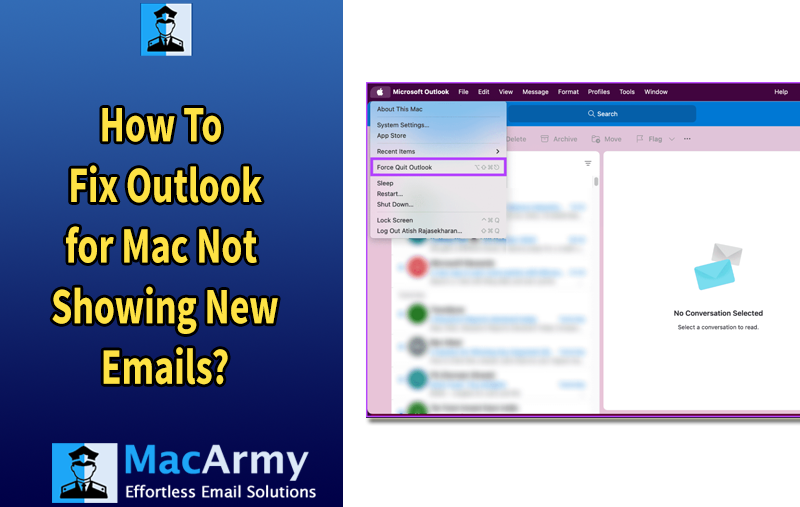
Microsoft Outlook is widely used as a central hub for handling emails, whether it’s your inbox, sent messages, or other important folders. However, many Mac users run into a frustrating issue where Outlook stops showing new emails. When this happens, accessing fresh messages becomes difficult, disrupting both personal and professional communication. Over time, this can lead to missed updates, delays, and unnecessary confusion.
If you’re experiencing this problem and want reliable ways to resolve it, you’re in the right place. In this guide, we’ll walk you through the issue in detail and explain what causes it, along with the most effective solutions to get Outlook for Mac working properly again.
Common Reasons Outlook for Mac Fails to Display All Emails
There are several reasons why Outlook for Mac may fail to display new messages. Below are the most frequent technical issues that can trigger this problem:
- A weak or unstable internet connection can stop new emails from loading properly.
- Temporary outages or glitches on the Outlook server can interrupt email delivery.
- Incorrectly configured filters may hide incoming messages from view.
- If your Mac is running low on storage space, Outlook may struggle to load new emails.
- Using an outdated version of Outlook for Mac can also prevent it from receiving messages as expected.
- Incorrect account settings or misconfiguration can lead to emails not appearing in the inbox.
- Minor internal errors within Outlook for Mac can temporarily block new messages from showing up.
These common factors are often responsible for Outlook failing to display new emails. Unfortunately, such issues can negatively affect workflow and communication, especially for professionals who rely on timely updates.
Understanding the Impact of Email Sync Issues on Outlook for Mac
When Outlook for Mac fails to display new messages, users may miss important information and experience delays in accessing their mailbox. This not only slows down daily tasks but also affects overall productivity. As a result, communication becomes inconsistent, creating confusion and interruptions, especially in professional environments where timely email exchanges are essential.
To overcome these issues, it’s important to follow a proper troubleshooting process. Doing so helps users identify the root causes and take immediate corrective actions. If you’re looking for practical ways to fix the “Outlook for Mac not showing new emails” problem, follow the methods outlined below to resolve it quickly.
Effective Fixes for Outlook for Mac Not Displaying New Emails
In this section, we’ll walk through effective solutions to resolve the issue of Outlook for Mac not displaying new messages. Here are the quick fixes you can try:
- Check your internet connection
- Review Outlook’s Work Offline settings
- Clear the cache of Outlook folders
- Look for the latest Outlook updates
- Reconfigure your email account
These manual troubleshooting steps can help restore normal functionality. Now, let’s look at each method in more detail.
1. Check Your Network Connection
A poor or unstable internet connection is one of the most common reasons Outlook for Mac won’t load new emails. If your messages aren’t updating, start by verifying your connection. Disconnect and reconnect to your Wi-Fi or switch to a different network if possible. This basic step often resolves temporary connectivity issues.
2. Review Outlook’s Work Offline Settings
Sometimes users accidentally enable the Work Offline option, which prevents Outlook from syncing new messages. To ensure syncing is active, follow these steps:
- Open Outlook on your Mac.
- Click Outlook in the top menu bar.
- Check whether Work Offline is enabled. If it is, disable it.
Restoring online mode helps Outlook reestablish communication with the mail server and start receiving new emails again.
3. Clear Cache for Outlook Folders
Clearing cache is another helpful way to fix syncing issues. Corrupted or outdated cache files can stop new emails from appearing. To clear the cache:
- Launch Outlook for Mac.
- Select any folder (Inbox, Sent Items, etc.).
- Go to File in the menu.
- Choose Folder > Properties.
- Click Empty Cache.
Once the cache is cleared, Outlook will sync the folder again and download fresh messages.
4. Check for the Latest Outlook Updates
Running an outdated version of Outlook for Mac can lead to performance issues and syncing errors. To check for updates:
- Open Outlook on your Mac.
- Click Help in the top menu.
- Select Check for Updates.
If an update is available, install it to ensure smoother performance and compatibility with macOS.
5. Reconfigure Your Outlook Account
If none of the above step’s work, reconfiguring your email account may help. Removing and adding the account again can resolve hidden configuration errors and restore syncing. This approach often fixes persistent issues related to email loading or delivery.
These methods should help you restore normal email flow in Outlook for Mac and ensure that new messages appear without delay. Let me know if you want a step-by-step visual guide or troubleshooting for a specific email provider (Office 365, Gmail, iCloud, etc.).
Tip to Keep in Mind
If you’ve tried all the manual troubleshooting methods and the problem still persists, you can consider using a professional tool. One reliable option is MacArmy OLM Converter for Mac. This advanced utility is designed to help users restore Outlook data on macOS and export it into multiple file formats for easy access. It serves as a helpful alternative when traditional fixes don’t resolve the issue.
Concluding Words
To sum up, we’ve explored the common factors that can cause Outlook for Mac to stop displaying new emails and outlined several practical ways to fix the issue. By following the troubleshooting steps provided, most users should be able to restore normal email functionality. However, if the problem continues even after trying the manual solutions, turning to a professional tool can be a dependable option. Such advanced software ensures quick access to your Outlook data without further complications.
