Quick Steps to Import Outlook OLM Files into Google Calendar
In this guide, we will explore how to import Outlook OLM files into Google Calendar. Specifically, you will learn the process of transferring a Mac Outlook calendar to a Gmail calendar. Follow the steps carefully to discover the most efficient solution.
Google Calendar is widely used in both professional and personal settings. By moving your calendar to a Google account, you can access your events conveniently from any device. The recommended format for transferring OLM files is .ics.
The ICS format is a universal calendar file type recognized by most calendar applications, including Microsoft Outlook, Apple Calendar, Google Calendar, and Mozilla Thunderbird Lightning Calendar. ICS files are widely used for sharing calendar events because they allow easy import into almost any calendar application while preserving event details.
In this article, we will cover both manual and automated methods for importing Outlook OLM files into Google Calendar.
Recommended Software for Migration
To directly import Outlook OLM files into Google Calendar, you can use the MacArmy OLM to ICS Converter. This tool allows you to convert all calendar events from OLM files to a Gmail-compatible calendar, regardless of the file size. You can try the software using the free trial version, which supports up to 25 OLM files. For migrating an unlimited number of files, you can purchase the full licensed version.
Common Method to Transfer OLM Files to Google Calendar
Mac Outlook allows users to export calendar data locally in a standard format. Follow these steps to move your calendar to Google Calendar:
- Open Outlook for Mac and navigate to Tools > Export.
- Select Calendar and click Continue.
- Choose a location to save the exported file and click Save.
- The calendar will be exported as an .ics file.
- Log in to your Google account and go to Settings.
- Select Import/Export and click Select a file from your computer.
- Locate the saved .ics file and click Import to add the Outlook calendar events to Google Calendar.
Limitations:
- The manual method can be time-consuming and may not guarantee 100% accuracy.
- Microsoft Outlook must be installed on your Mac to perform this process.
How to Import OLM Calendar to Google Calendar
Using the recommended tool, users can convert multiple OLM files to ICS format in a single batch without duplication. The software also allows direct migration of Outlook for Mac calendars to a Google account. The process can be completed efficiently, even without logging into your Google account.
Steps to Transfer OLM Calendar to Google Calendar
- Install the OLM Converter and launch it on your device.
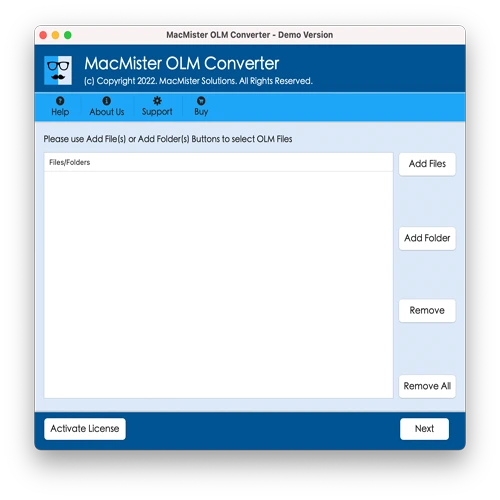
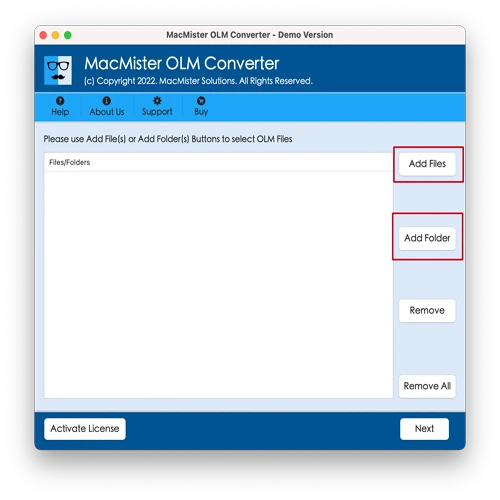
- Click the Add button to upload your OLM files into the software. Remove any unwanted files using the Remove button, then click Next.
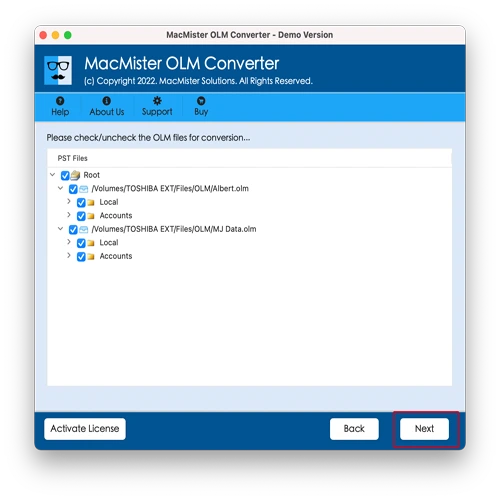
- All uploaded files will appear in a list. Select the OLM calendar file you want to convert and click Next.
- Click Select Saving Option and choose ICS from the drop-down menu. Alternatively, select the Gmail option to directly migrate the OLM calendar to Google Calendar.
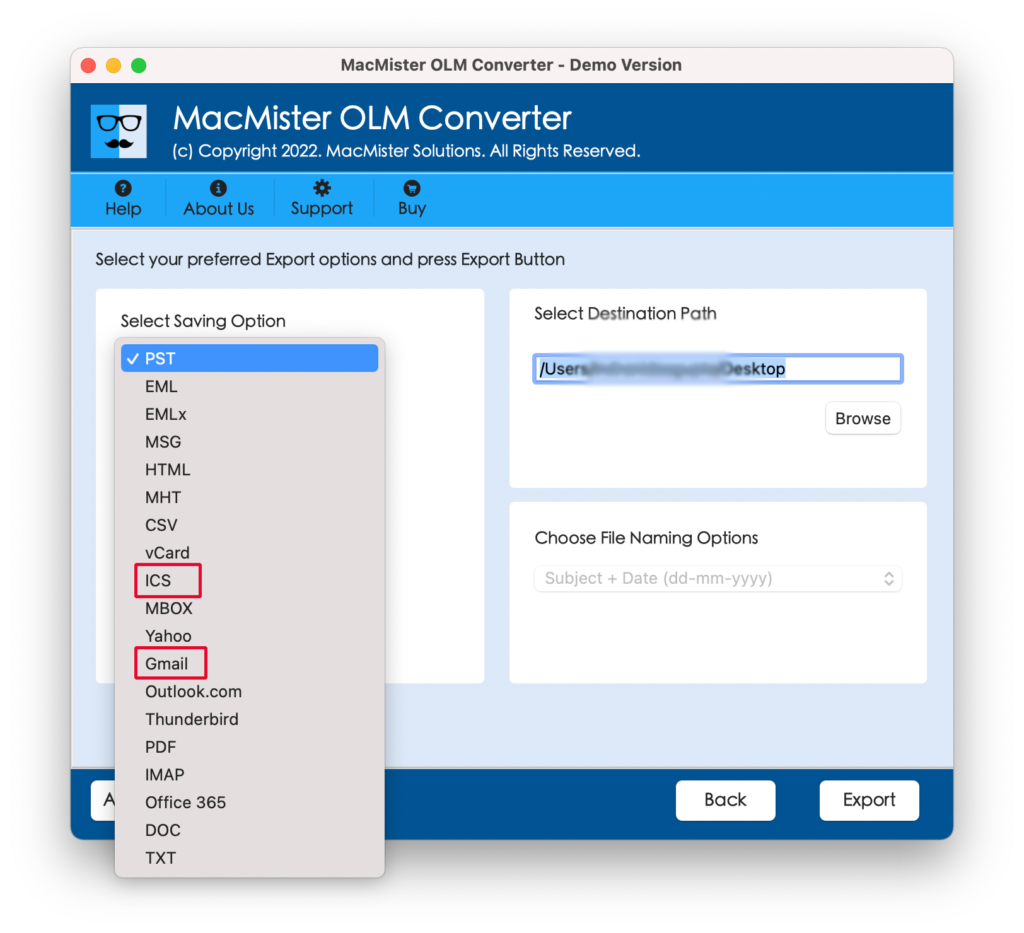
- Browse and select a location to save the converted files.
- Finally, click Export to begin converting your Outlook for Mac calendar to ICS format or migrate it directly to Google Calendar.
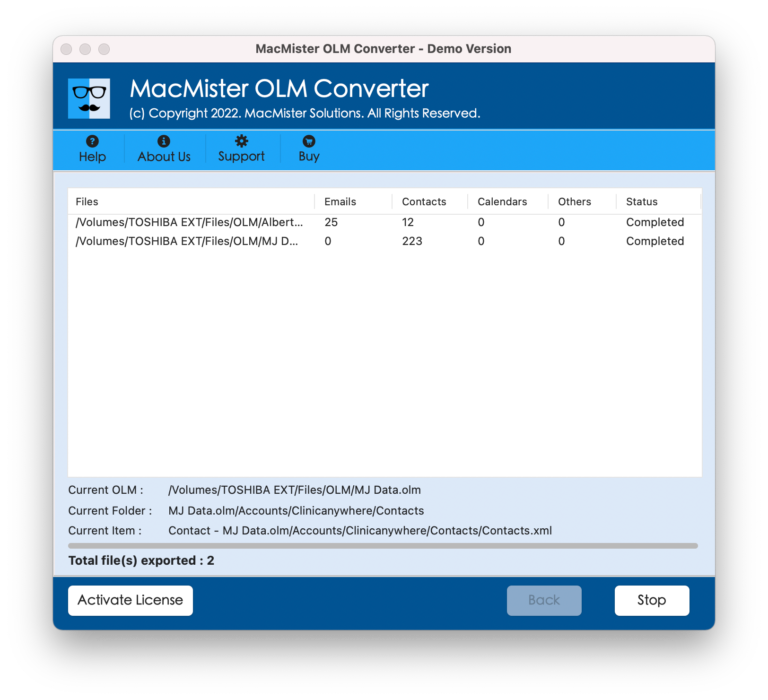
This method ensures a secure and accurate transfer of calendar events without losing data or structure.
Key Features of Software to Import OLM to Google Calendar
Before selecting a tool to migrate OLM files to Google Calendar, it’s important to understand its main features:
- Easy Conversion: The tool allows seamless conversion from. olm to .ics format. All calendar data, including event titles, descriptions, dates, times, and other details, is accurately extracted and converted into ICS files.
- Batch Processing: If you have multiple OLM files or a large number of calendar events to transfer, batch conversion saves time and effort. The software can handle several files or events at once, making the process faster and more efficient.
- Data Security: The conversion process is completely safe, ensuring the privacy of your calendar information. It is recommended to choose tools with a strong reputation for protecting user data.
- User-Friendly Interface: Even users with limited technical knowledge can easily navigate the software. A simple, intuitive interface with clear instructions makes the conversion process straightforward and hassle-free.
Final Note
You can choose any of the methods mentioned to import OLM files into Google Calendar. However, many professional users prefer using a dedicated software solution, as it offers a reliable way to convert multiple files at once. The recommended tool allows both selective and batch conversion of Mac Outlook calendars. The entire migration can be completed in a single process, without repeating steps, ensuring a smooth and efficient transfer.
Frequently Asked Questions
Q) Can the tool convert other types of OLM files?
A) Yes. The application supports the conversion of all Mac Outlook data, not just calendar files.Q) Is Microsoft Outlook required to use this tool?
A) No. As long as the OLM files are saved on your system, Outlook installation is not necessary.Q) Will my data be modified during the conversion process?
A) No. The tool ensures complete data integrity, maintaining 100% accuracy throughout the conversion.Q) What is the best way to preview OLM file contents?
A) The OLM Viewer is the most reliable method to examine Outlook for Mac files. While you can open the files in Outlook, a dedicated viewer allows you to check the content without the need for the Outlook application.
