How to View MBOX Files on Mac Without Installing Thunderbird
Did you recently switch to a new MacBook and now have a collection of MBOX files, wondering how to view MBOX files on Mac without installing Thunderbird email client? Are you looking for a simple and safe way to access your emails? Don’t worry, this article will guide you through a method to open MBOX files without Thunderbird by converting them into a readable format.
An MBOX file is a mailbox file that stores email messages along with their attachments. It is widely used by several email clients to organize and store emails, with Mozilla Thunderbird being one of the most popular options. Many Mac users rely on Thunderbird to manage their email communications. Thunderbird is a free, open-source email application that functions similarly to other email clients like Microsoft Outlook, Apple Mail, eM Client, and others. It offers a full-featured platform that acts as a personal information manager, including calendars, contact books, chat functionality, RSS feed readers, and news clients. Additionally, Thunderbird is not limited to Mac; it is fully compatible with Windows OS as well.
One of Thunderbird’s convenient features is the ability to export emails into MBOX files. This function is especially helpful for users who are migrating to a new Mac system or transferring their emails from Windows to macOS. By exporting emails into MBOX format, users can ensure their messages are safely backed up and ready to be accessed on another system.
Next, let’s explore how to export MBOX files from Thunderbird on both Mac and Windows so that they can be accessed without the Thunderbird email client.
How to Export MBOX Files from Thunderbird on Mac
To export MBOX files from Mozilla Thunderbird on a Mac, follow these steps carefully:
First, open Mozilla Thunderbird on your system. At the top-right corner of the window, click on the three vertical lines to open the menu, and then select Add-ons. This action will open a new window. Here, click on Up & Coming to explore available extensions.
Next, use the search bar to look for the Import/Export add-on. Once found, download and install it properly. After installation, Thunderbird will prompt you to restart the application to activate the add-on. Make sure to do so.
After restarting, navigate to the mailbox you want to export. Right-click on the folder and select All Mail. From the menu that appears, choose Export Folder. Then, select the location where you want Thunderbird to save the emails as an MBOX file.
Once the export is complete, go to the chosen location. You will find the exported folder containing your emails. Right-click on the relevant file and rename it to add the .mbox extension. For instance, if the file is named XYZ, rename it to XYZ.mbox.
This process successfully exports your emails from Thunderbird into an MBOX file. While you can open this file with a text editor, it will not display emails correctly. Therefore, experts recommend converting MBOX files into PDF or another secure format, especially if the emails contain sensitive information, to ensure readability and proper preservation of content.
Why PDF is the Best Choice Compared to Other File Formats
PDF (Portable Document Format) is one of the most versatile, secure, and reliable file formats available today. It is free to use and can be accessed on any device, at any time, making it highly convenient for personal and professional use. There are several advantages to using PDF files, some of which are highlighted below:
- Easy to view and share: PDF files can be opened quickly and shared effortlessly across different platforms.
- Consistent formatting: The document maintains accurate graphics, fonts, and layout elements regardless of the device.
- Cross-platform compatibility: PDFs work seamlessly on all operating systems, including Mac, Windows, and Linux.
- Security features: PDF files support built-in password protection, which is ideal for safeguarding sensitive information.
- Preserves non-text elements: Images, tables, charts, and other non-text content remain intact, preserving the original formatting.
- File compression: Large files can be compressed without compromising the quality of the document.
- Digital signatures and watermarks: PDFs can include electronic signatures and watermarks to prevent unauthorized use or theft of the content.
Due to these features, converting important files, such as MBOX emails, into PDF ensures better security, accessibility, and presentation compared to other formats.
How to Open MBOX Files on Mac Without Thunderbird
One of the simplest ways to open MBOX files on a Mac without using Thunderbird is by using the MacArmy MBOX to PDF Converter for Mac. This software is designed to be intuitive, advanced, and user-friendly, making it suitable for both professionals and beginners. The interface is straightforward, and the steps required to complete the conversion are minimal, allowing users to finish the process quickly and efficiently.
In addition, the tool comes packed with several useful features that let users customize the conversion according to their needs. By using this application, you can easily access the content of MBOX files without depending on Thunderbird or any other email client. Furthermore, the software offers a free trial version, which allows users to evaluate the functionality and check the conversion process before purchasing the full version.
This solution ensures that Mac users can view and manage their MBOX emails in a readable format without any technical complications, making it an ideal choice for anyone moving from Thunderbird or other email clients.
Working Steps to Open MBOX Files on MacBook Without Thunderbird
Step 1: Download, install, and launch the MacArmy MBOX Converter on your MacBook.
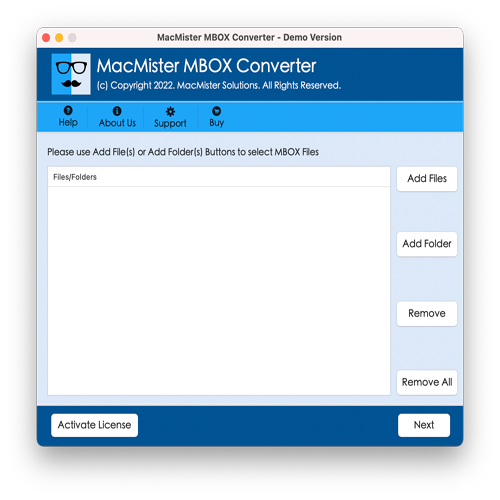
Step 2: Add MBOX files to the tool using the available options: Add File(s) or Add Folder. The Add File(s) option lets you select individual MBOX files, while the Add Folder option allows you to load an entire folder containing multiple MBOX files for batch processing. Choose the appropriate option and click Next to proceed.
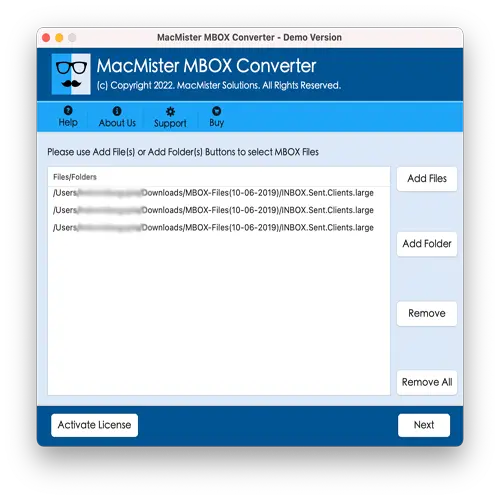
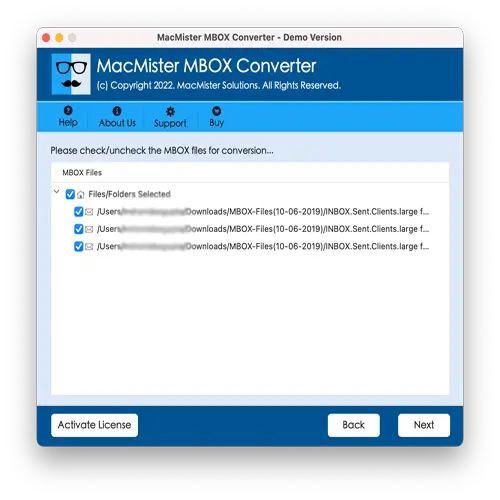
Step 3: The software will display all loaded MBOX files with selected checkboxes. If there are files you don’t want to convert, you can deselect their checkboxes. Once ready, click Next.
Step 4: On the next screen, several options will be available. Apply any required settings as per your preference and click Next to continue.
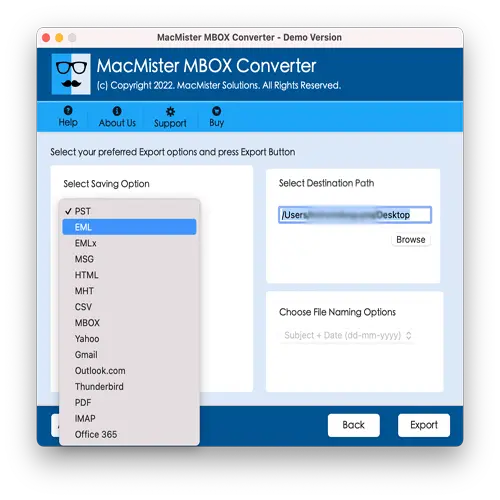
Step 5: The tool also provides filter options for selective conversion, as well as options to handle duplicate emails. After applying these settings, click Export.
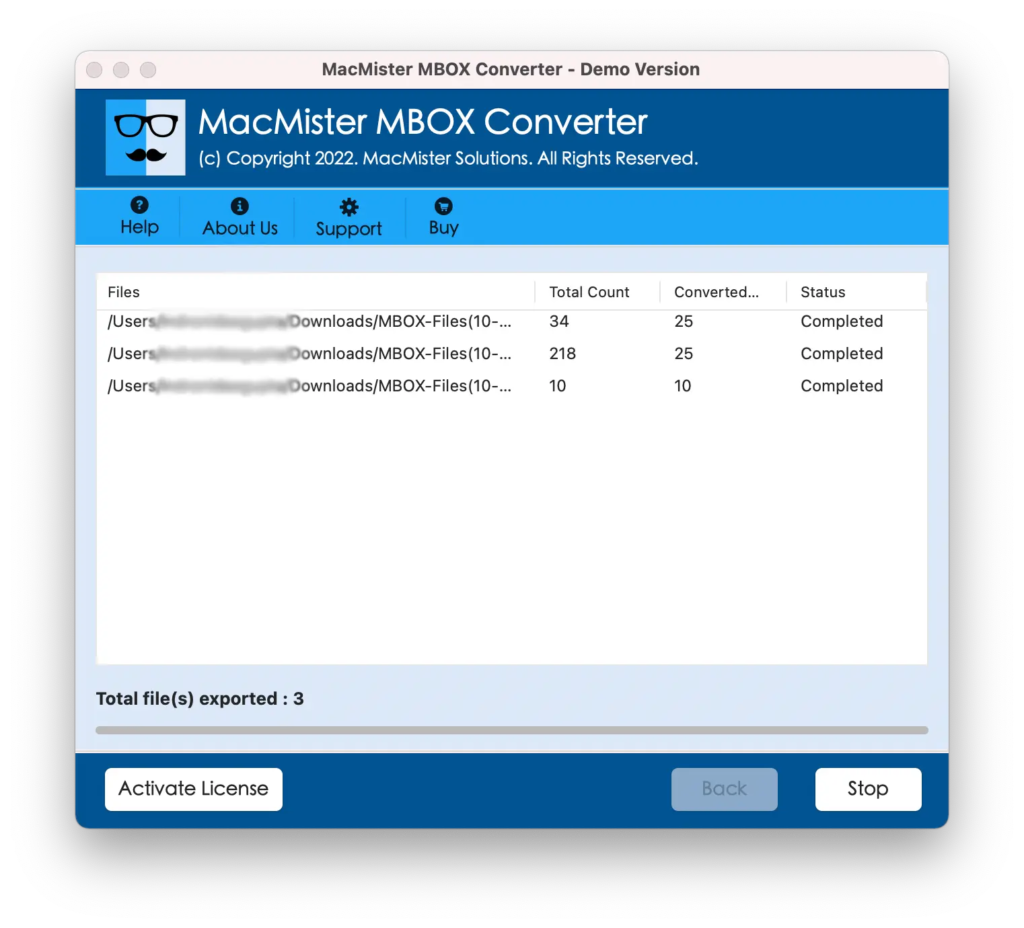
Step 6: The software will begin the conversion process and display a Live Conversion Report, showing the status of each MBOX file.
Within a few seconds, the process will complete, and a Conversion Completed message will appear, confirming that the MBOX files have been successfully converted to PDF on your MacBook. Click OK and navigate to the location where the PDFs are saved. Open the PDF file to verify the content, and you will notice that the emails are preserved with accurate formatting, layout, and all original data.
Using this tool, Mac users can easily open MBOX files without relying on Thunderbird, ensuring a smooth and accurate conversion process.
Conclusion
In this article, we have discussed an effective solution for how to open MBOX files on a MacBook without Thunderbird. The MacArmy MBOX File Converter for Mac provides a reliable way to access MBOX files that may otherwise be inaccessible. This tool allows users to convert MBOX emails into PDF format, enabling them to view the content immediately without risking any data loss or alteration.
The software is certified, trusted by experts, and highly recommended due to its efficient, time-saving, and dependable performance. Users can download the free demo version to explore the complete workflow at no cost. The trial version allows opening the first 25 MBOX files on a MacBook without requiring Thunderbird, making it a risk-free option to test before full use.
With this approach, Mac users can safely and easily access their MBOX emails without depending on Thunderbird or other email clients.