Fix Apple Mail Mailbox Greyed Out Error on Mac (2026 Update)
Apple Mail is a desktop-based email application developed by Apple for macOS users. While it is generally reliable, there are times when the Mail app may stop working as expected, and certain Apple Mail mailbox greyed out error. This issue can occur unexpectedly and often prevents users from sending or accessing emails.
In most cases, the problem is caused by system-level restrictions applied to the Mail app. Other common reasons include changes made to the email service settings that require reconfiguration, corrupted or outdated Mail preference files, or incorrect file permissions associated with the application. Any of these factors can cause Apple Mail mailboxes to become disabled or unresponsive.
To better understand this issue and learn how to resolve it, let’s take a look at some real-life situations where users commonly encounter the “Apple Mail mailbox greyed out” problem.
Common User’s Scenarios
Scenario 1
“I have been using Apple Mail for several years without any issues. Recently, however, my Mail account suddenly became greyed out and stopped working. I am unable to send emails or even access the account settings. Can someone explain why this is happening and how I can fix the Apple Mail account greyed-out issue?”
Scenario 2
“A few days ago, I updated the Apple Mail application. After the update, my Mail account was disabled and appeared greyed out. Since then, I have been facing difficulties accessing my mailbox and using the app normally. I have important emails stored in my account, so I’m looking for an immediate solution to restore my Apple Mail account.”
Reasons Why Apple Mail Is Greyed Out and Not Working
Several factors can cause Apple Mail to become unresponsive or appear greyed out. Below are some of the most common reasons behind this issue:
Mail Server Settings Changes: Sometimes, email service providers make changes to their mail servers, especially outgoing (SMTP) servers. These servers are frequently updated to improve security and prevent misuse, such as spam-related attacks. If Apple Mail is not updated with the new server settings, the account may stop responding, resulting in a greyed-out mailbox.
Preference File Not Updating Properly: Apple Mail relies on preference files to store account settings. If the application is unable to write changes to these files, updated server requirements may not be saved. As a result, outgoing mail settings remain incorrect. When the Mail app is reopened, features like the Send button may be disabled or dimmed.
Corrupted Mail Preference File: In some cases, the Mail preference file itself becomes corrupted. When this happens, Apple Mail may stop functioning correctly or restrict certain features, such as sending emails. It is always recommended to back up your data before troubleshooting, as account details and settings may be lost during the repair process.
Virus or Malware Infection: Although macOS is known for its strong security, malware or virus infections can still interfere with Apple Mail. Such attacks may damage system files or mail-related data, leading to unexpected behavior, including greyed-out mailboxes.
Incomplete or Faulty Updates: Apple Mail may become greyed out after a system or application update that did not install correctly. Incomplete updates can cause compatibility issues or disrupt existing mail configurations.
Incorrect File Extension Changes: Modifying file extensions associated with Mail data can also restrict access to mailboxes. Such changes may confuse the application and prevent it from loading mailbox content properly.
Advanced and Reliable Method to Fix the Apple Mail Mailbox Greyed Out Issue
When manual troubleshooting methods fail to resolve the Apple Mail mailbox greyed out error, using a specialized solution can be an effective alternative. MacArmy MBOX to PST Converter for Mac & Windows allows users to securely export and manage Apple Mail data while preserving its original integrity.
The application offers several powerful features, including:
- Allows bulk export of Apple Mail mailboxes into PST format in a single process
- Maintains complete data integrity by preserving the original mailbox structure
- Provides multiple options to add and load Apple Mail mailboxes easily
- Ensures email metadata, such as sender, recipient, date, and subject, remains unchanged
- Supports multiple output formats in addition to PST, including PDF, MSG, EML, Gmail, Yahoo Mail, Office 365, and more
- Efficiently processes large-sized Apple Mail mailboxes without performance issues
- Fully compatible with both macOS and Windows operating systems across all editions
The tool features a simple and intuitive interface, making it suitable for both technical users and beginners. With a streamlined workflow and minimal steps, users can complete the entire export process quickly, saving both time and effort while ensuring their Apple Mail data remains secure.
How to Use the Application to Backup Apple Mail Mailboxes
Follow these steps to safely export and back up your Apple Mail mailboxes on macOS:
#1: Download, install, and launch the MacArmy MBOX to PST Converter application on your Mac.
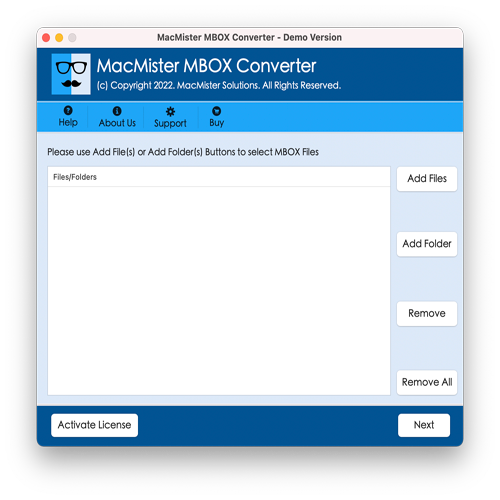
#2: Add your Apple Mail mailboxes using the available options. If you have standalone MBOX files, click the Add File(s) or Add Folder button to upload them. Once loaded, click Next to continue.
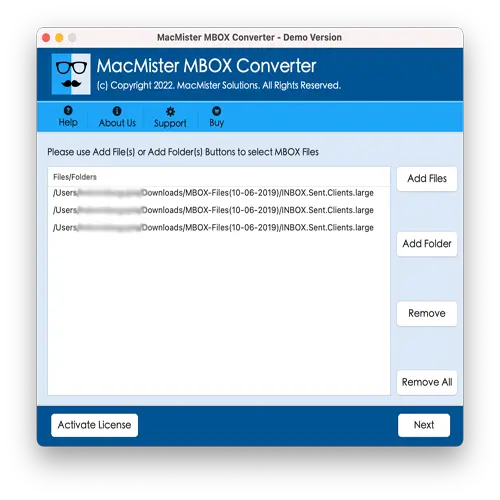
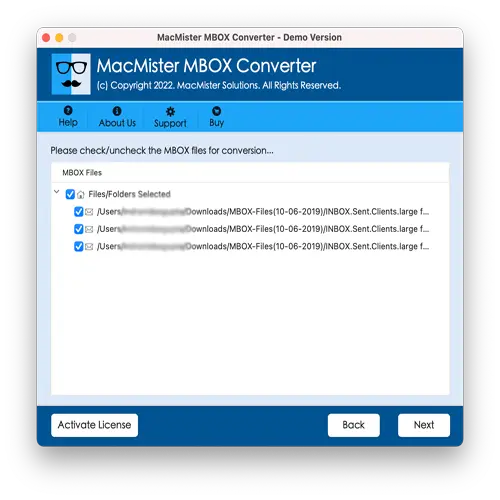
#3: Review the list of loaded files displayed on the screen to ensure all required mailboxes are included. Then, click Next.
#4: Open the Select Saving Options dropdown menu and choose the format you want to export your mailboxes to.
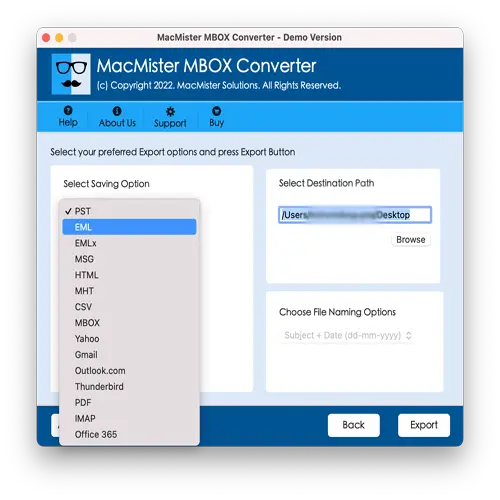
#5: Customize any sub-options available for the selected format according to your preferences, and then click Export.
# 6: A Live Conversion Report will appear, showing the progress and details of the export process. When the process finishes, a ‘Conversion Completed’ notification will appear on the screen. Click OK to finish.
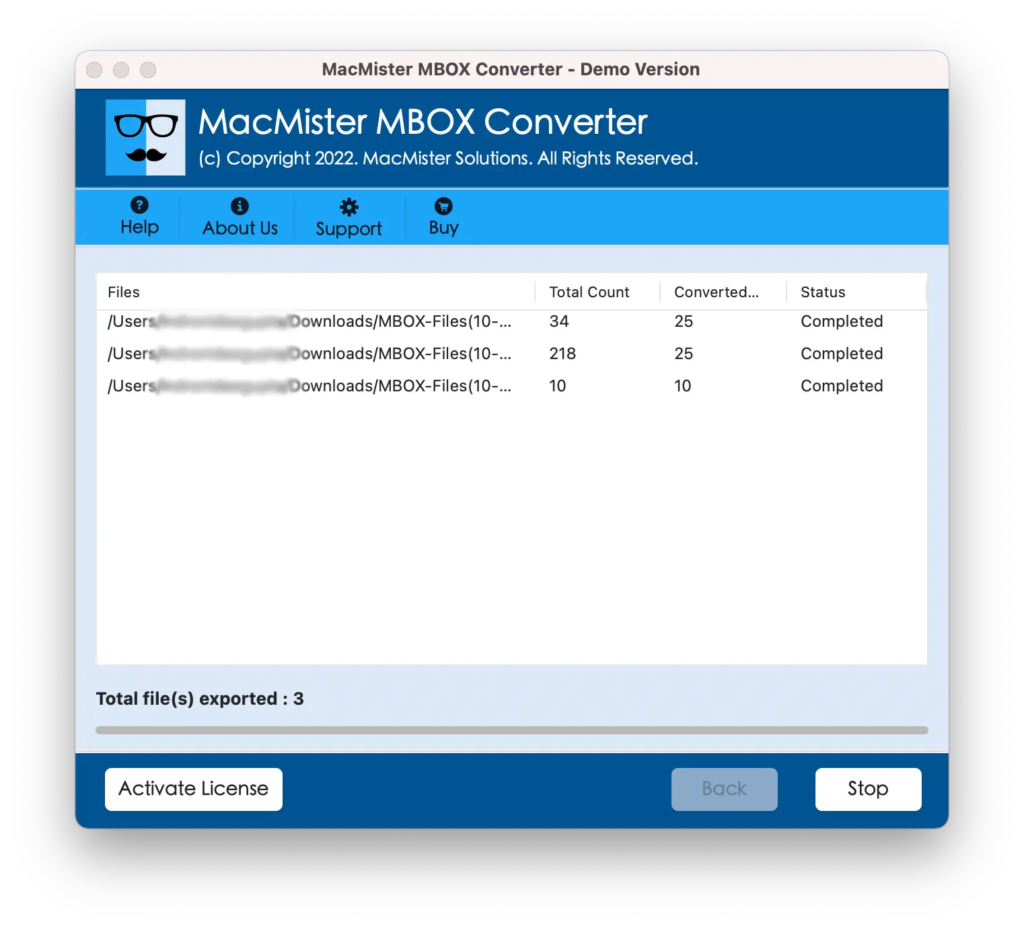
Within seconds, your Apple Mail mailboxes will be safely backed up and ready to use in the selected format.
Conclusion
Reliable email access is essential, no matter which client you use. The Apple Mail mailbox greyed out error can be caused by multiple factors, including virus attacks, incomplete updates, or incorrect file extensions. While these issues may prevent normal usage, third-party tools like MacArmy MBOX Converter provide a secure and efficient way to back up and convert Apple Mail mailboxes into multiple formats.
Using this tool, users can export their Apple Mail mailboxes into over 15 different formats, including PST, EML, DOC, Gmail, Yahoo Mail, Office 365, and more. This not only helps in fixing accessibility issues but also ensures that your mailbox data remains safe and can be used across different email platforms.
